
Show only the phases you are planning
Pick any combination of phases and have every total on screen, and in the export, follow that selection.
Last updated
A long job is easier to read one phase at a time. The Phases filter hides the rest of the bars without deleting them, and every number that is on screen is recalculated from what is still showing.
That includes planned, required and actual crew, labour hours, activity counts, progress, the date range and the manload chart. The same selection is what an export contains.
Who can do this
- Every role can filter. Owners, admins, members and viewers all see the same control.
- Filtering never changes stored dates, crew or progress, and it does not change what anyone else sees.
What will be refused
- Clear all, then Apply, shows an empty schedule. That is the filter, not deleted work. Show all phases, or Select all and Apply, brings everything back.
- Unassigned tasks appear only when Unassigned is ticked. They are not included just because you left a phase off.
- The selection lasts for this browser session and resets when the set of visible jobs changes.
Open Phases
On the schedule, select Phases. The button shows how many phases are included, such as 4/4 when nothing is filtered.
Tick the phases you want
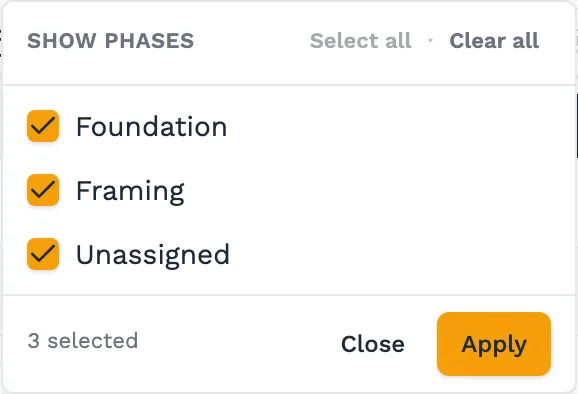
Each phase has a checkbox, and so does Unassigned. Select all and Clear all are at the top. The panel stays open while you tick, and the count updates as you go.
Apply
Select Apply to commit and close. Close without Apply throws away the ticks you have not committed. While a filter is on, the button uses a filled count so you can see it is active.
Read the totals again
Bars, manload, hours, counts and percentages now describe only the selected phases. All phases selected matches the unfiltered job. No phases selected shows nothing.
Come back to everything
If the schedule says there are no tasks in the selected phases, select Show all phases. You can also open Phases, choose Select all, and Apply.
Worth knowing
- The filter works in Classic, List and Swimlanes, and with the date, status, search and jobs filters.
- An export taken while a filter is on lists the included phases and matches the screen. Internal and Client-Facing both use that same selection.
Next steps
Still stuck?
Tell us the job and the dates involved and we'll usually answer without a call.
Or email Support@tradeflowplanner.com