
Lock a date so it cannot move
Freeze a task start, a task finish, or both, and see that lock on the calendar.
Last updated
Some dates are promises: a concrete pour, an inspection, a handover. Locking one means the schedule can be rearranged around it and the date itself stays put.
A lock is a start, a finish, or both. It records who locked it, when, and why. The history stays after you unlock.
Who can do this
- Owners and admins can lock and unlock.
- Members and viewers see the lock icon, the status (start locked, finish locked, or fully locked) and the reason. They cannot change it.
What will be refused
- A locked date does not move by drag, resize, a manual edit, moving a phase, a bulk edit, a copy, a nudge, a dependency recalculation, or a background update.
- The refusal names the task, which end is locked, the locked date, what tried to move it, the date that was requested, and the difference in working days. The product does not override the lock quietly.
- Changing a lock, or unlocking, asks for a reason. Unlocking also warns you when calendar entries for those dates will be removed.
- Locking only the start leaves the finish free, and the other way around. Duration is not corrupted to force both ends to stay.
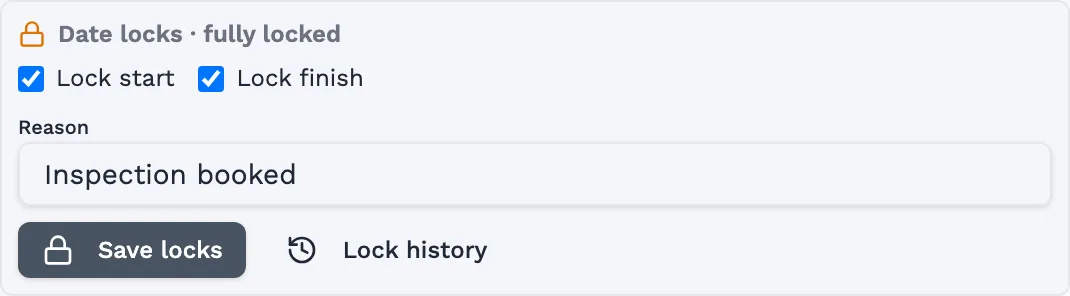
Open the task
From the schedule or the job, open the task you mean to freeze. Date locks sit on that task, under Dependencies.
Choose what to freeze
Tick Lock start, Lock finish, or both. The status line reads start locked, finish locked, or fully locked.
Write the reason
The reason is required. Say why this date cannot move — the inspection booking, the crane, the client's handover — so the next person does not have to guess.
Save locks
Select Save locks. The schedule shows a lock on the bar. The calendar gains one milestone for a locked start, one for a locked finish, and two when both ends are locked. Each entry names the job, the task, the date and the reason, and links back to the task.
Unlock only when you mean to
Clear the ticks and select Unlock. Confirm, and give a reason. History keeps the earlier lock. The matching calendar entries are removed after you confirm.
Worth knowing
- Lock history stays on the task after an unlock. Open Lock history to see who changed it and why.
- An intentional move still starts with an unlock, or with an edit that shows the conflict and asks you to confirm. There is no silent override.
Next steps
Still stuck?
Tell us the job and the dates involved and we'll usually answer without a call.
Or email Support@tradeflowplanner.com